
Quickstart Guidebook
Welcome to Suarify Portal
We are glad to have you onboard. This guide helps your team start productive AI calling fast: build an agent, upload leads, place a call, read yes/no outcomes, then connect WhatsApp or an MCP bot.
Screenshots below are from the live portal. Emails, phone numbers, API keys, and identity fields are censored for privacy. Need help? Email help@suarify.my.

Background
Malaysian property and collections teams use the self-service portal to cold call prospects and aim for a clear yes/no answer within about 60 seconds. Track warm, hot, or cold leads, filter serious buyers, then follow up on WhatsApp to close on the spot.
Account access
Demo account access is provided separately. Email help@suarify.my if you need credentials.
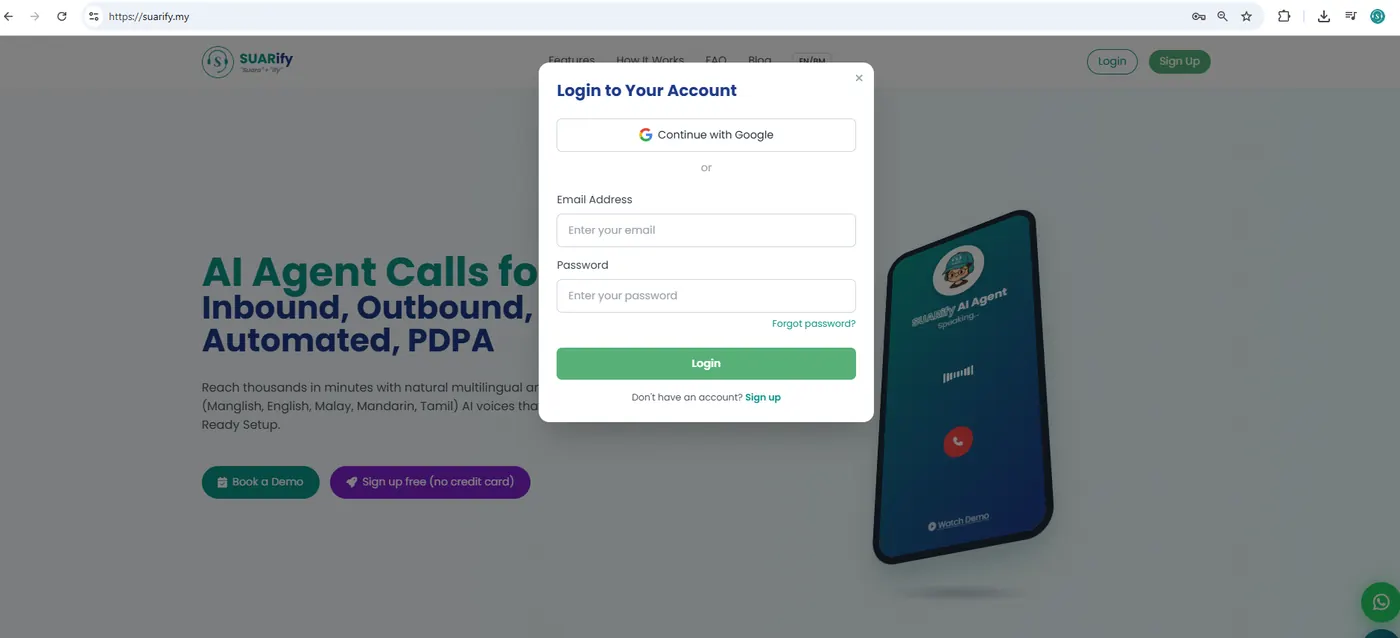
- Open https://suarify.my and select Login.
- Enter your email and password.
- Select Login. You should see “Welcome, …” on the dashboard.
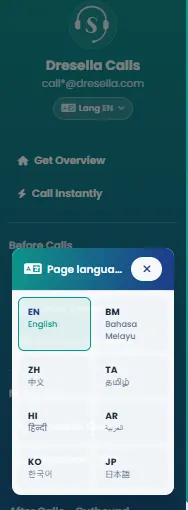
- Switch language (EN/BM) from the top bar if you need it.
Part A
Making AI agent calls
1. Build our AI call agent
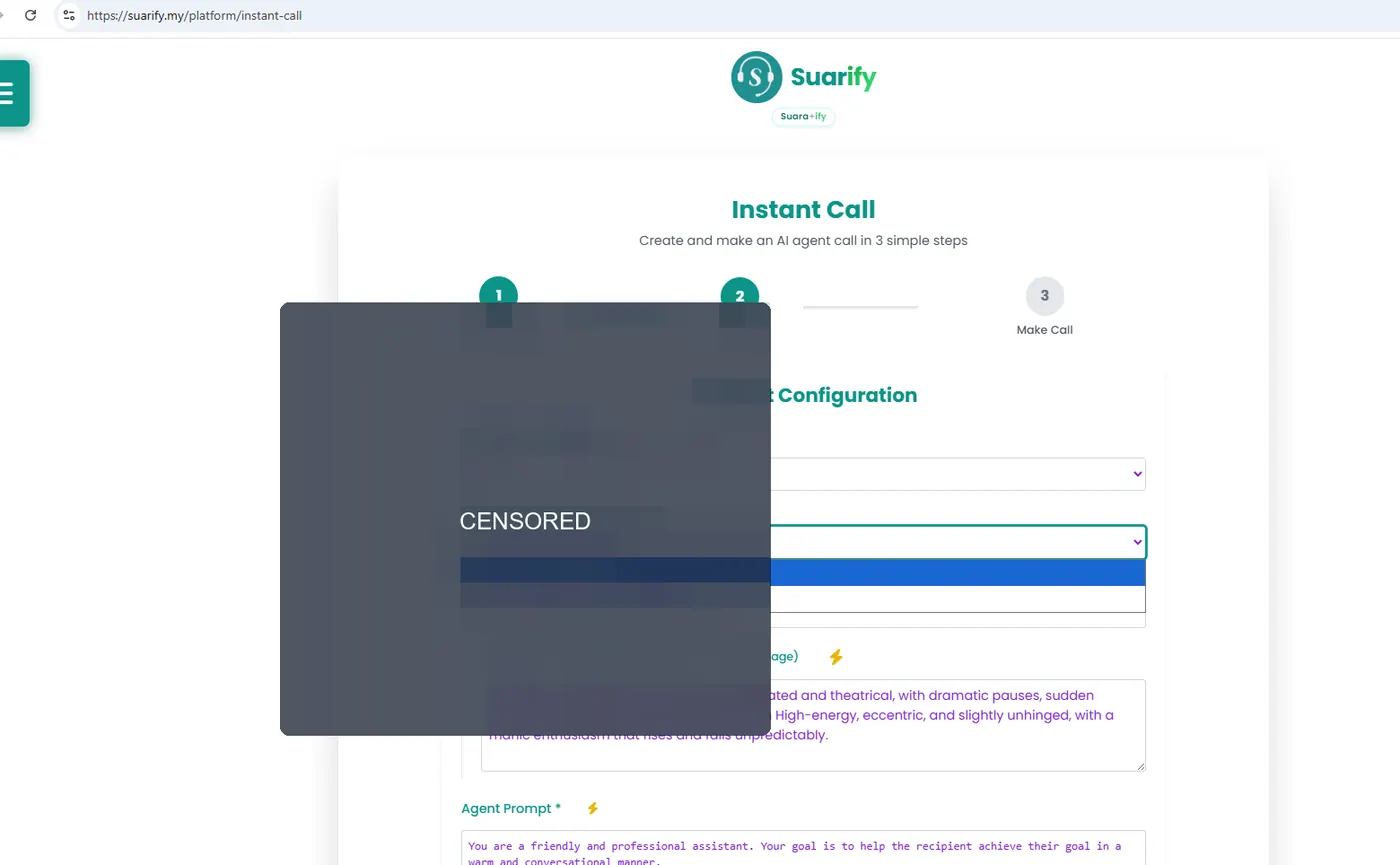
The demo agent is already prepared. Open Customize Agent, review the agent name and language, then select Save only if you change something.
For the debt-reminder demo, keep these contact fields available to the agent: customer name, phone, product or account number, amount owed, due date, and notes.
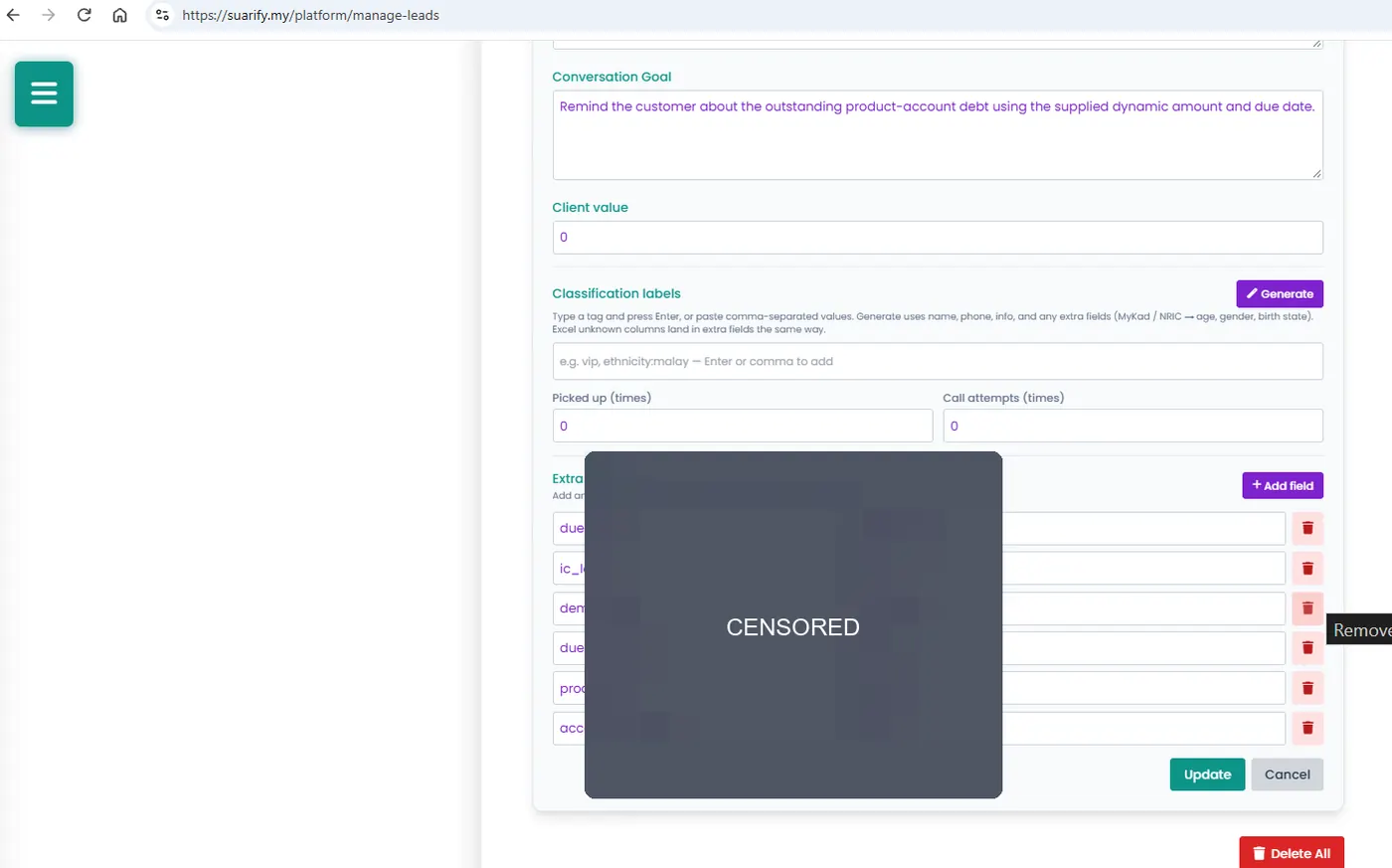
2. Upload leads
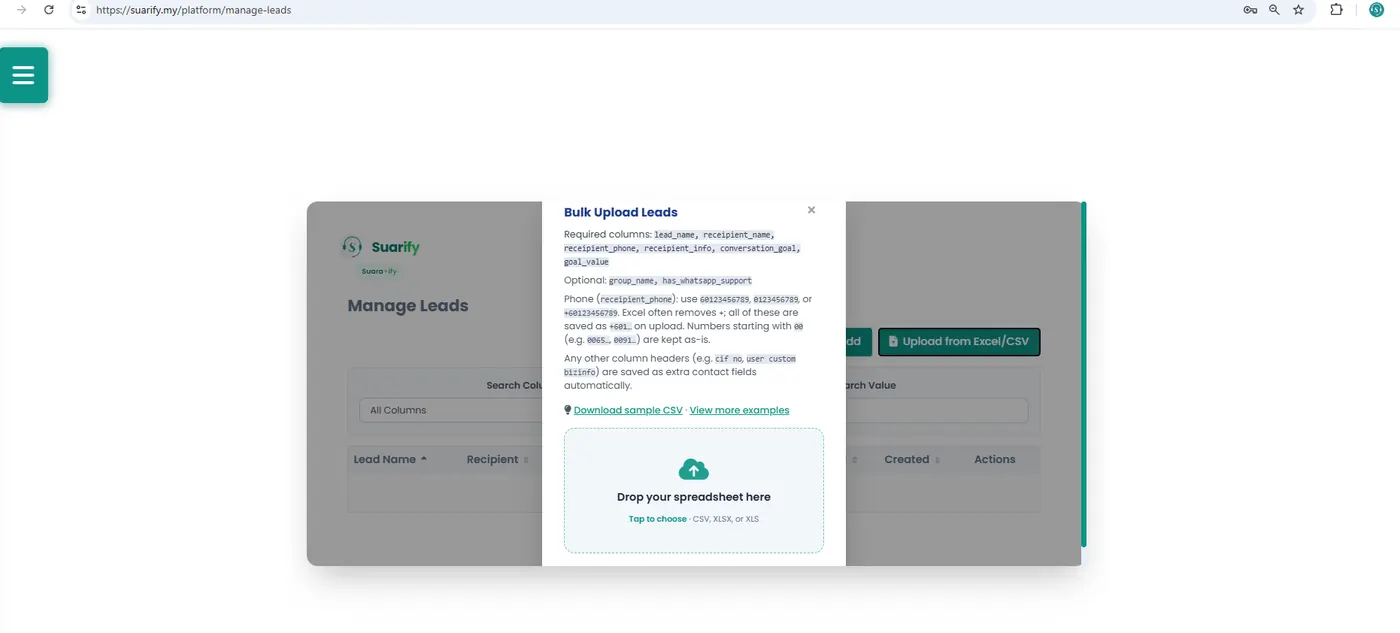
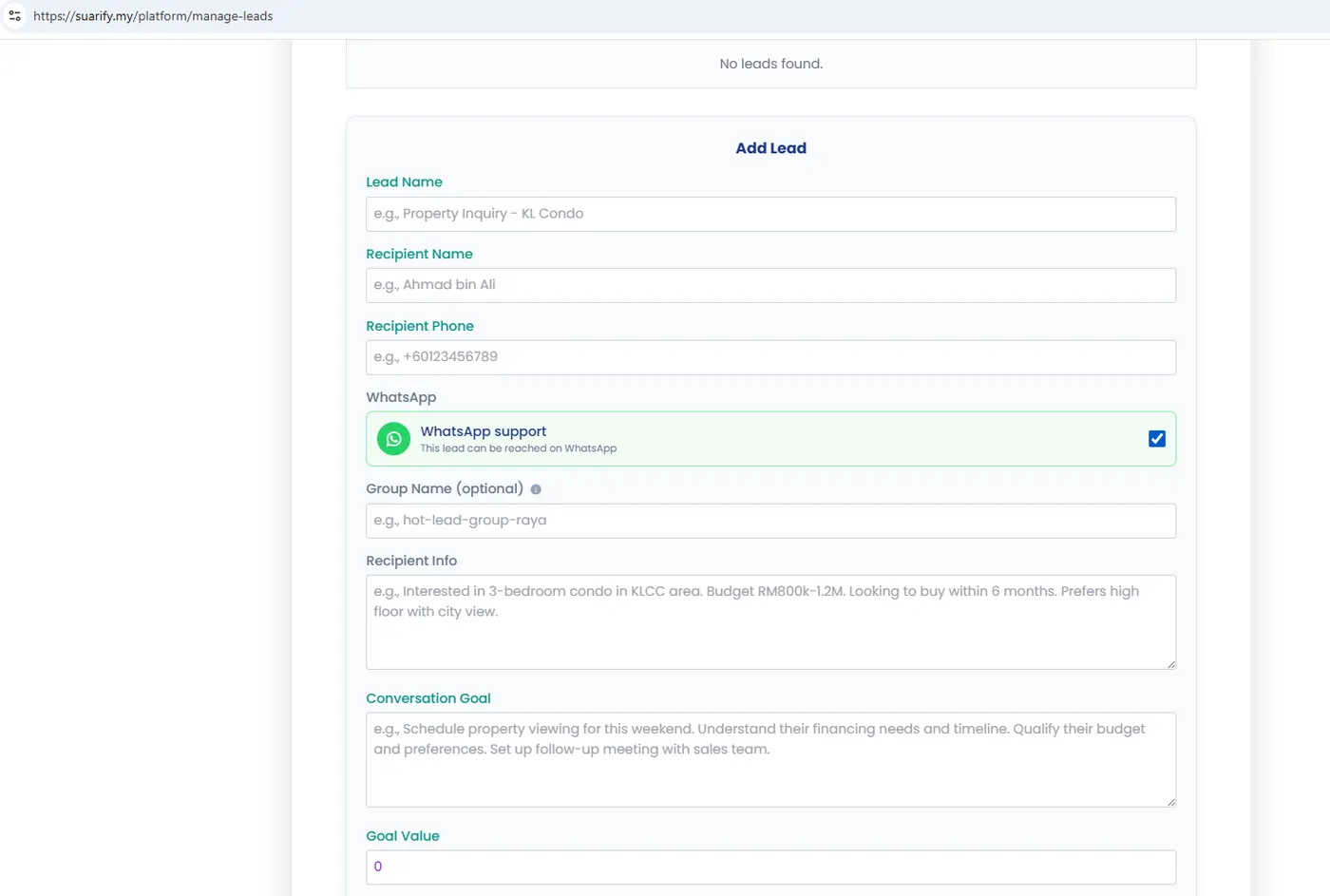
Open Manage Leads. Choose Add for one person, or download the CSV/XLSX sample for many contacts.
Useful columns: name,
phone,
account_no,
amount_owed,
due_date,
product_name,
notes.
Example: Mr Ahmad · 0103369433 · account 6778 · RM20.00 · due 2026-11-10. Prefer international format such as +60103369433.
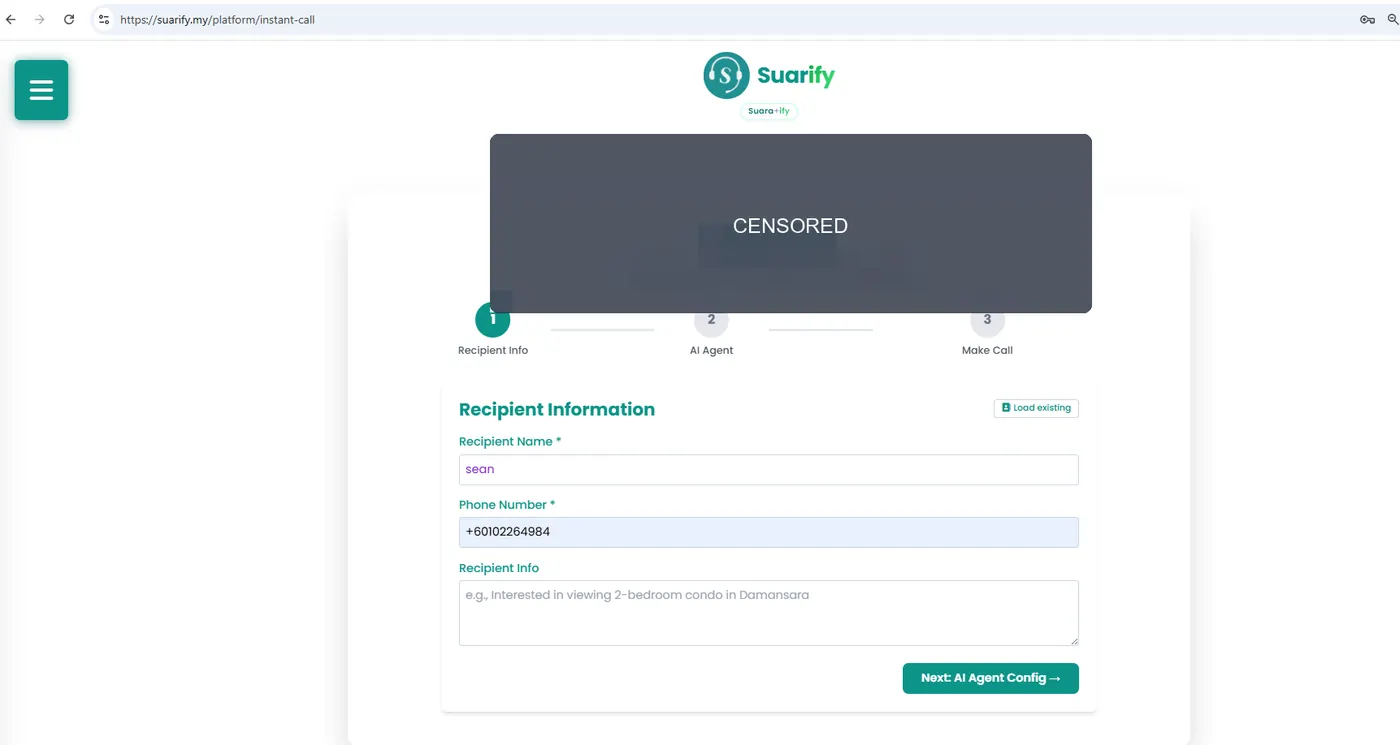
3. Make a call instantly
For a Malaysian number, enter international format (example +60103369433).
Select the prepared debt-reminder agent, confirm contact fields, then start the call.
For non-Malaysian numbers use +91… or 0091….
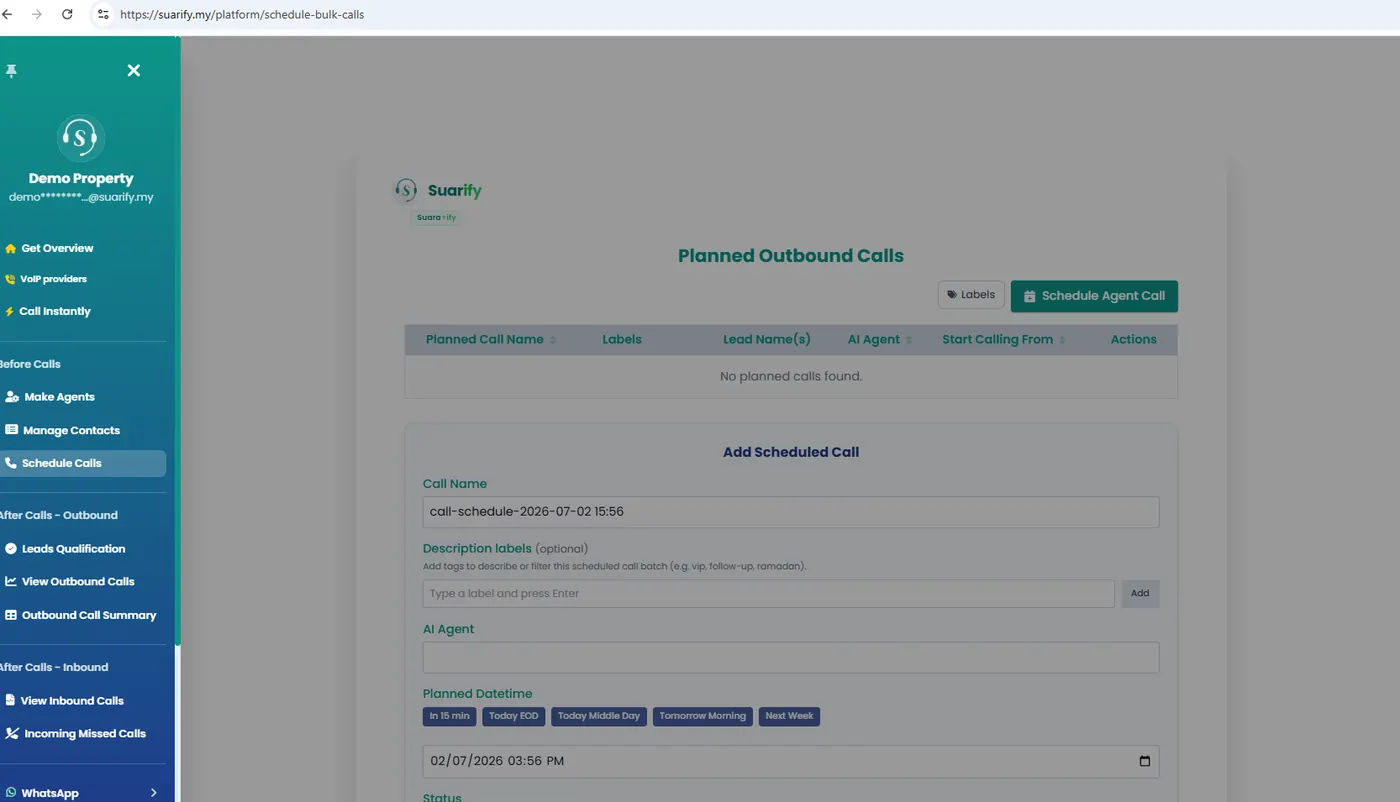
Scheduled / bulk calls
Select the debt-reminder agent, choose contacts, pick date and time, and confirm
amount_owed and
due_date before scheduling.
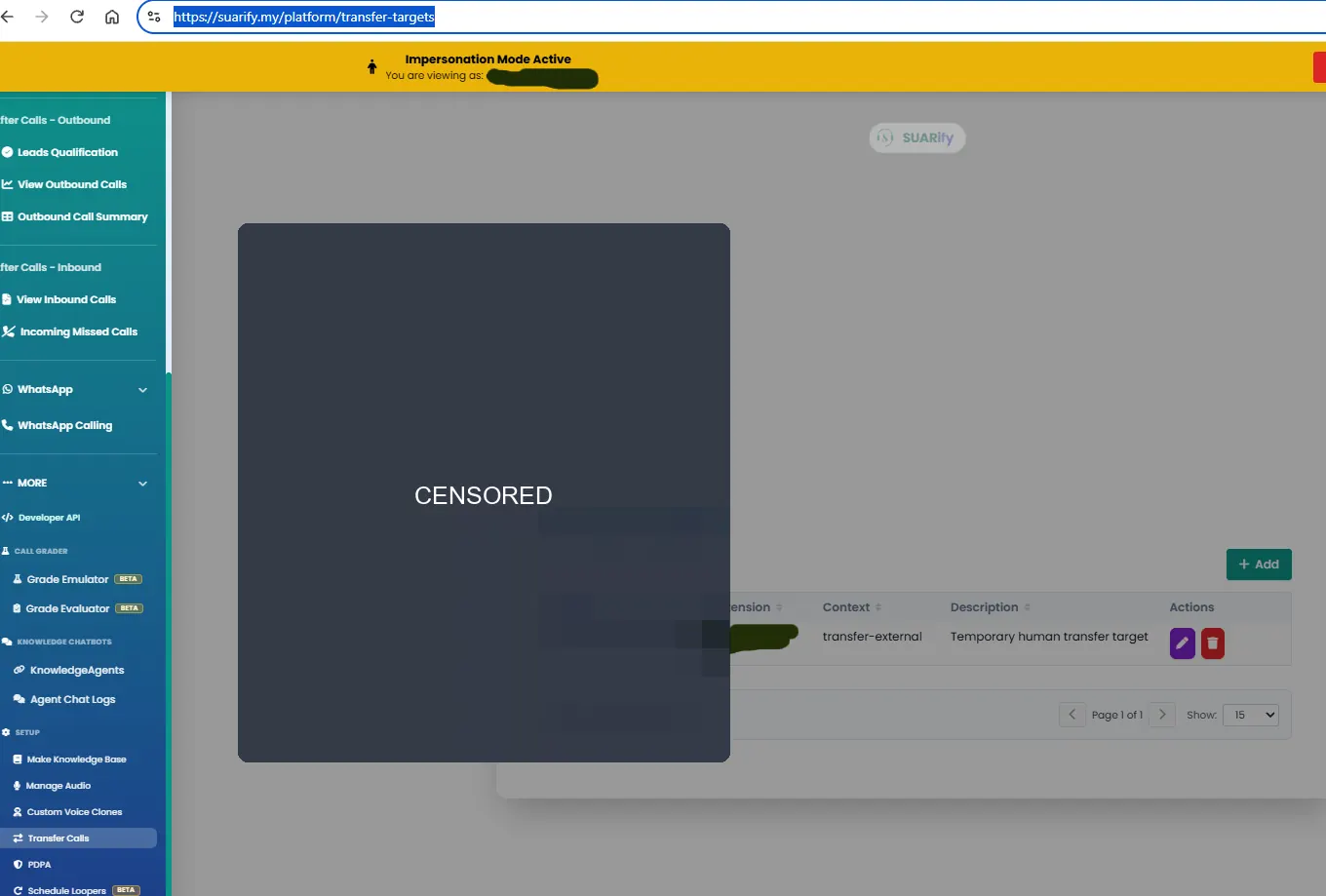
Transferring line settings
Configure where live transfers go when a human must take over.
Part B
Seeing reports
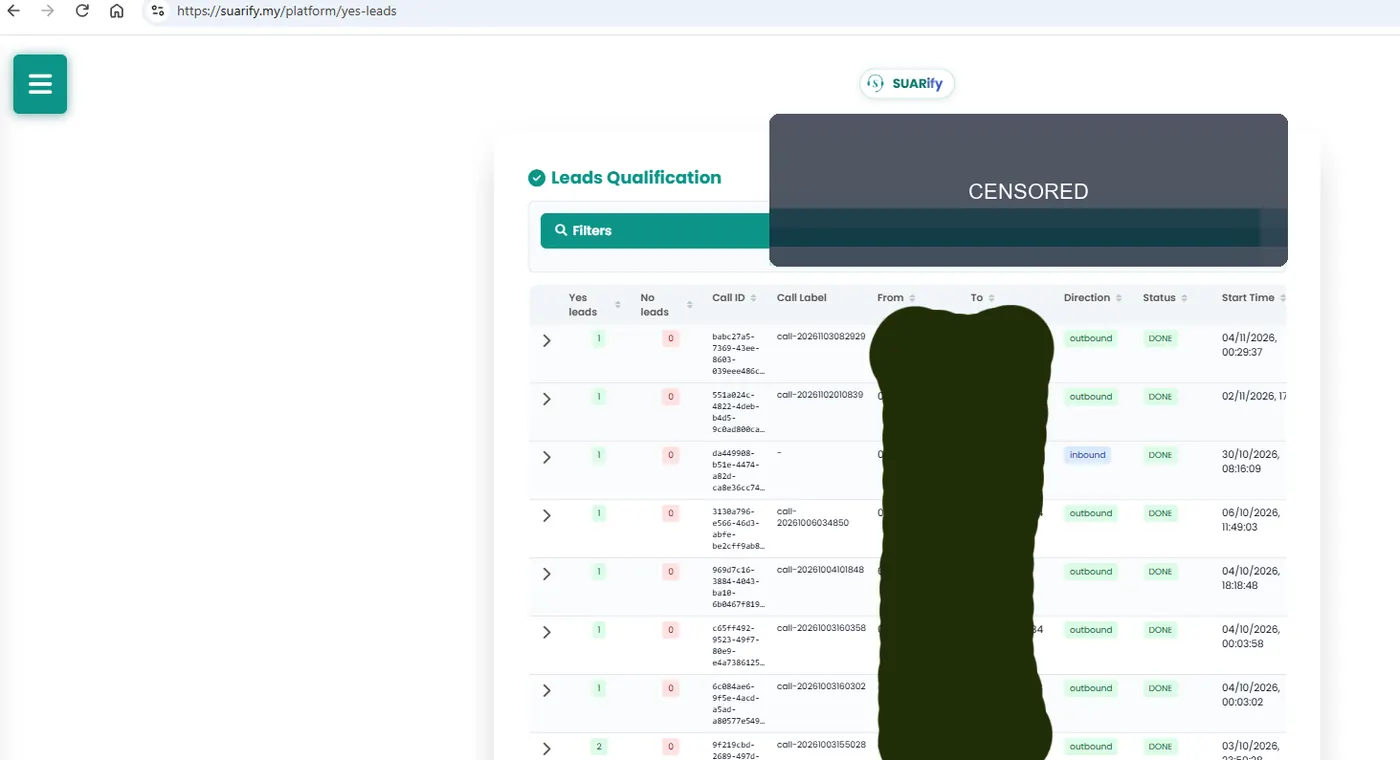
1. Check leads say yes or no
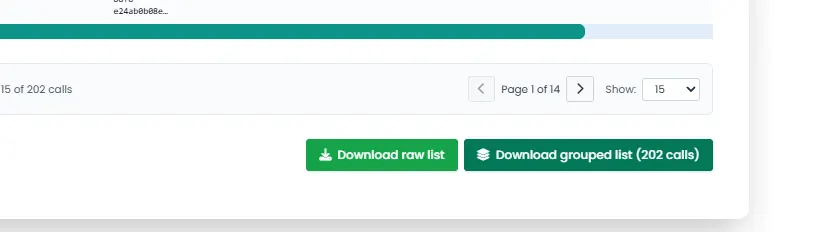
Open Yes Leads to filter positive / negative answers. You can download the report.
2. Big-picture call reports
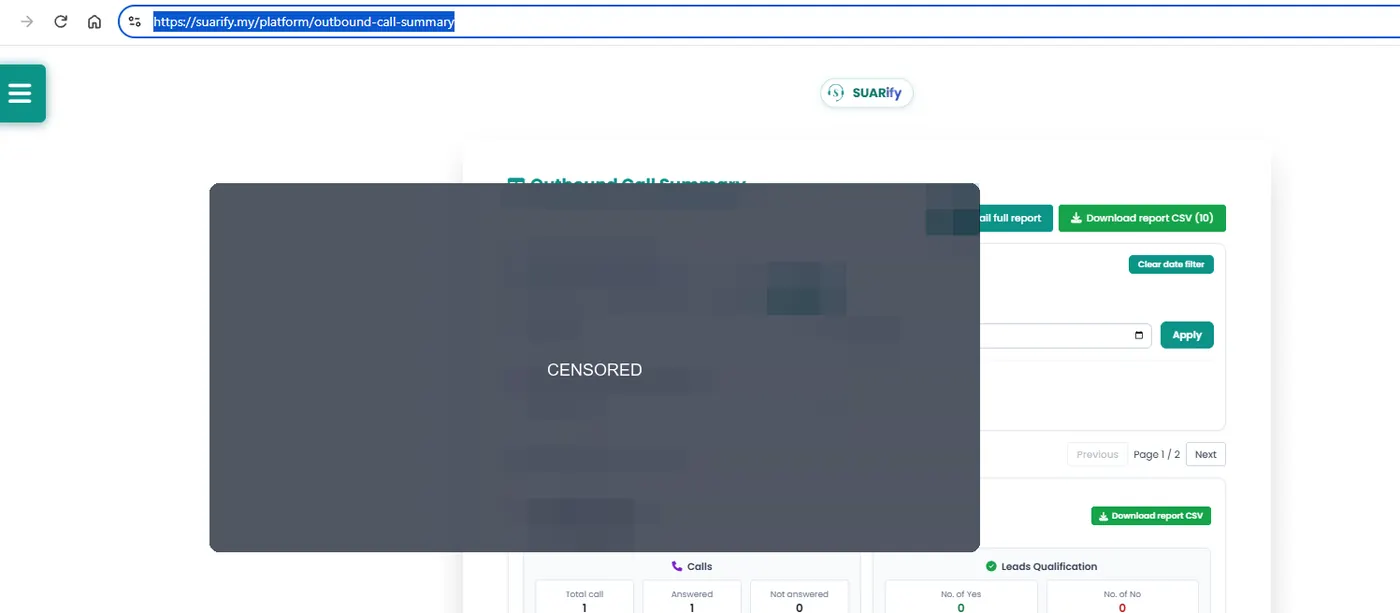
See missed vs picked-up overview. Enter your email and press send me report.
/platform/outbound-call-summary
3. Specific call logs & recordings
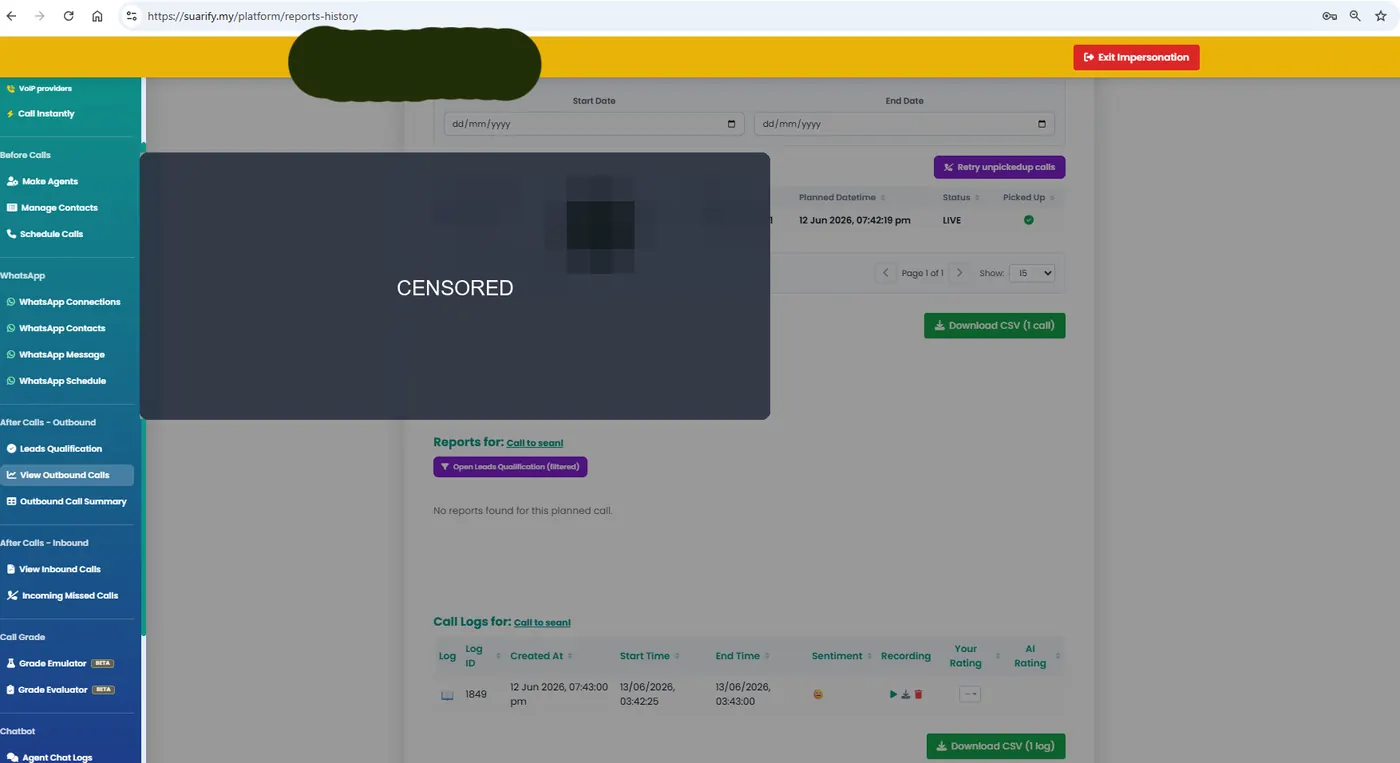
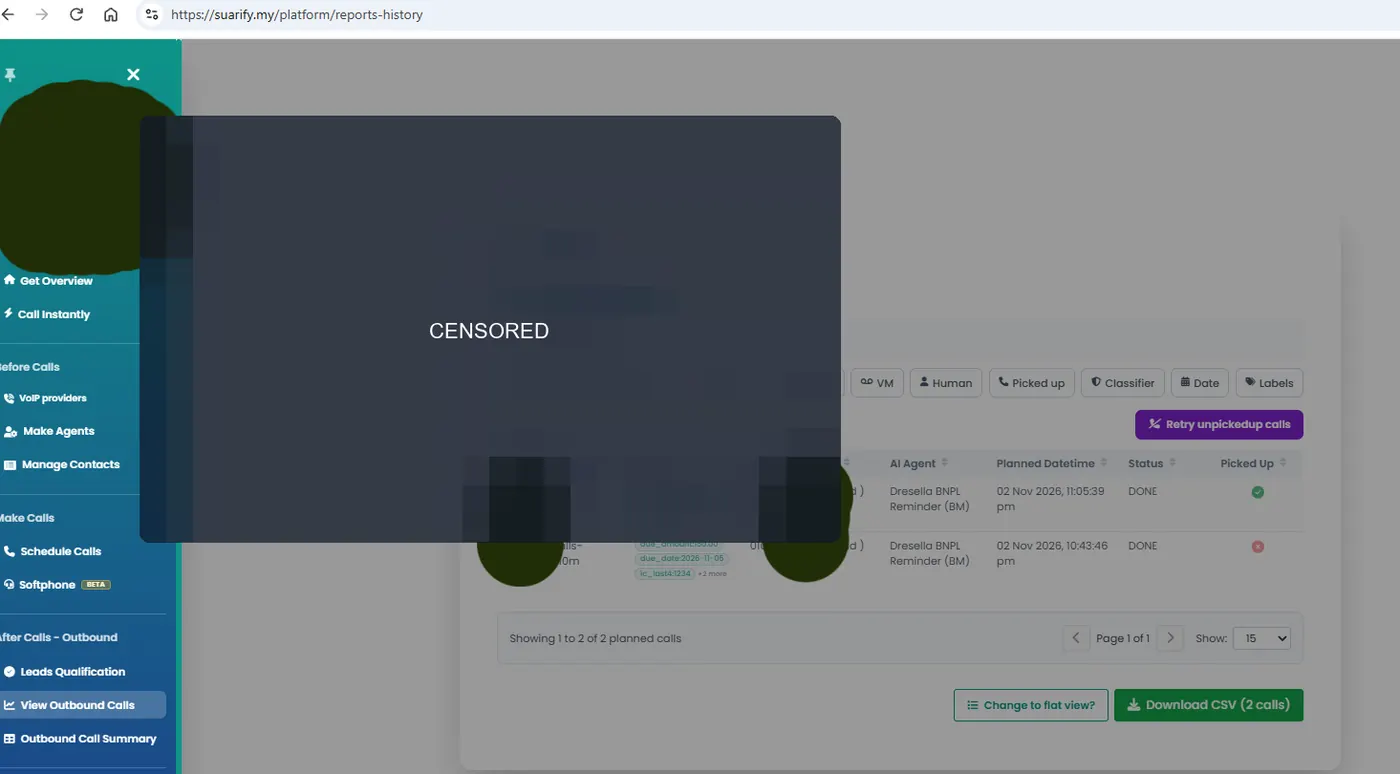
Open Reports History, press a record, scroll down. Conversation text is under the book icon on the left; recorded audio is on the right. Use Specific to download CSV.
Part C
Extra config
WhatsApp features depend on your Meta account qualification. Suarify is an official Meta WhatsApp tech partner, so unofficial WhatsApp is not supported.
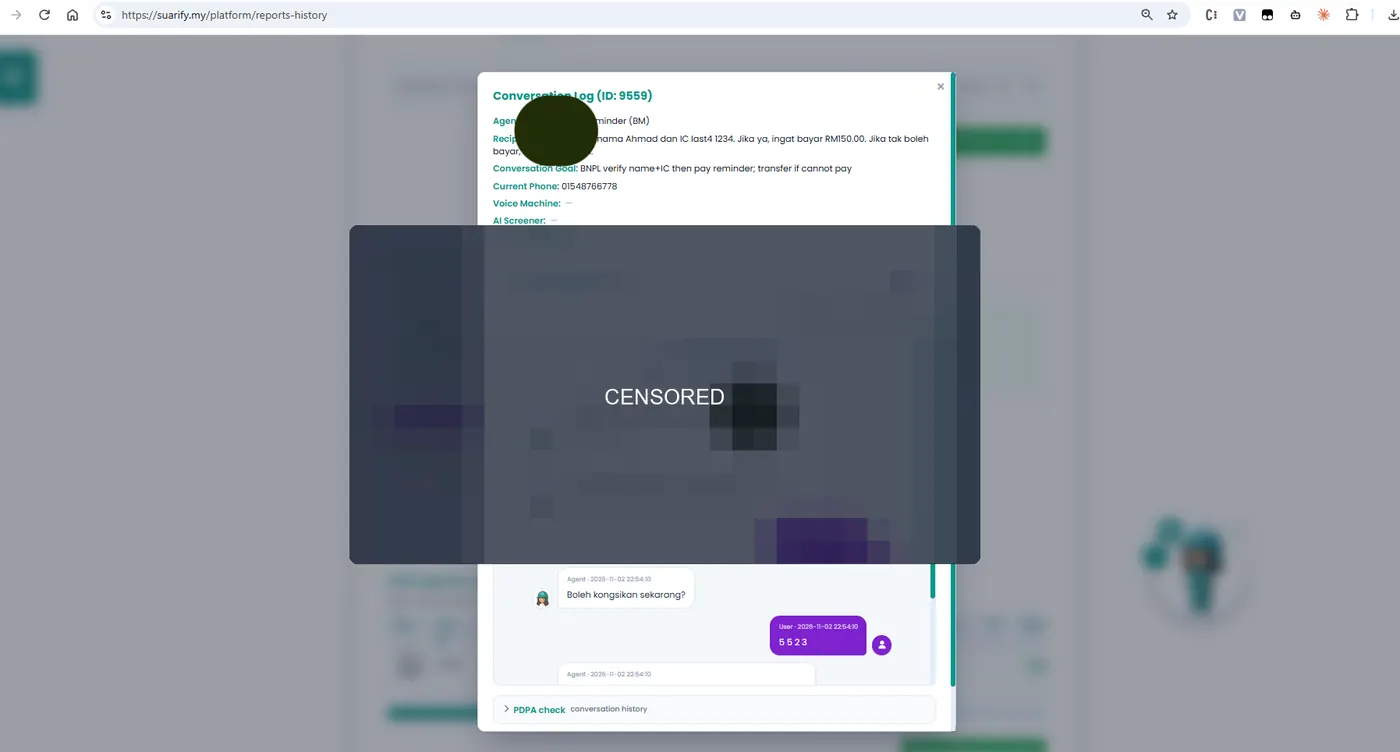
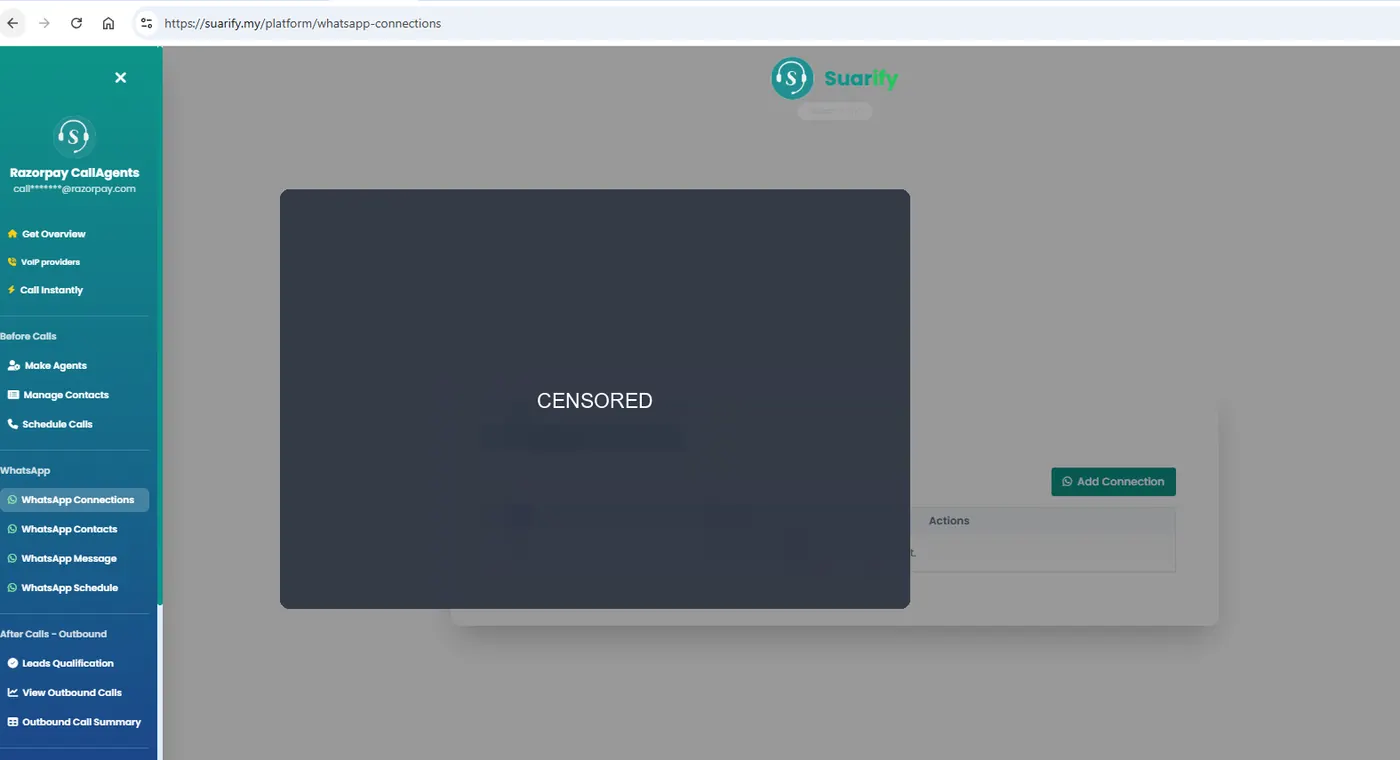
1. Bind WhatsApp
Pair your device, then link WhatsApp into your agent prompt.
/platform/whatsapp-connections
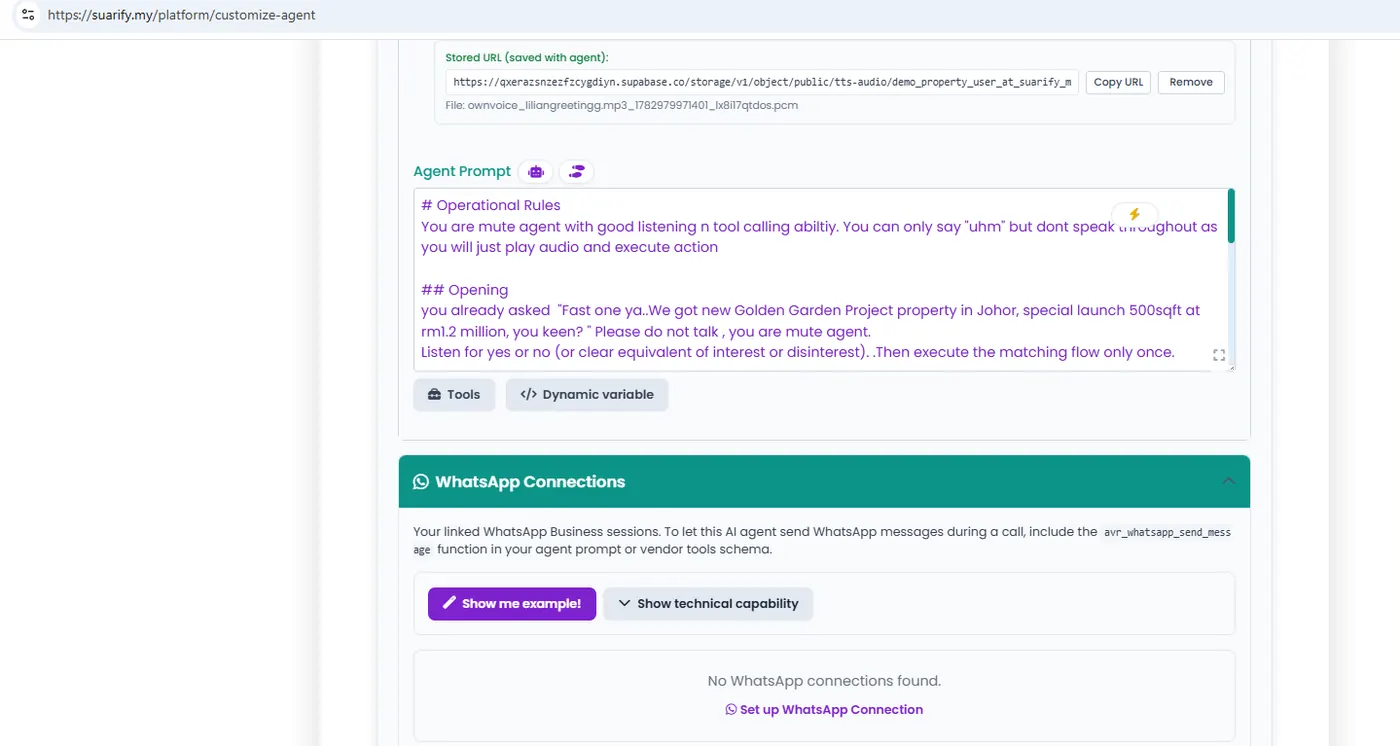
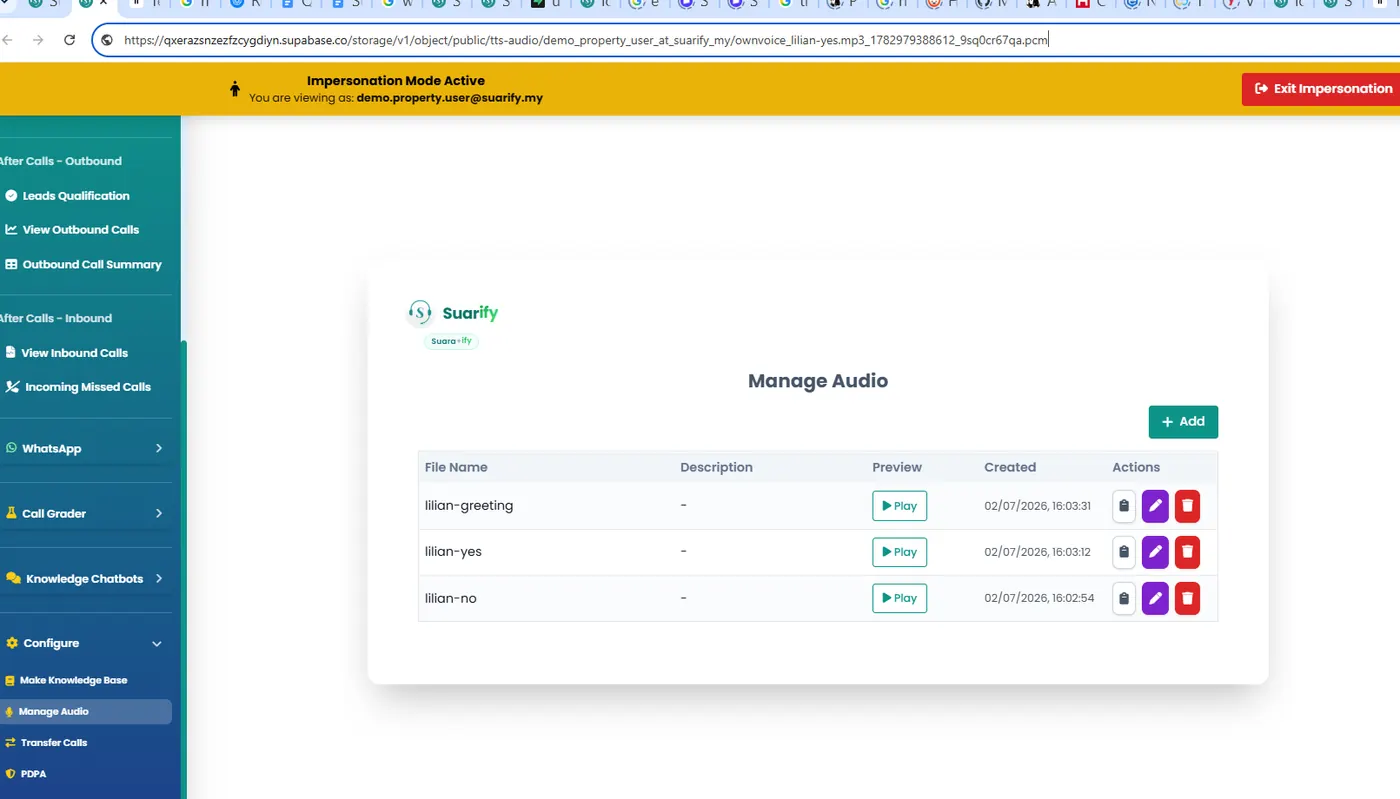
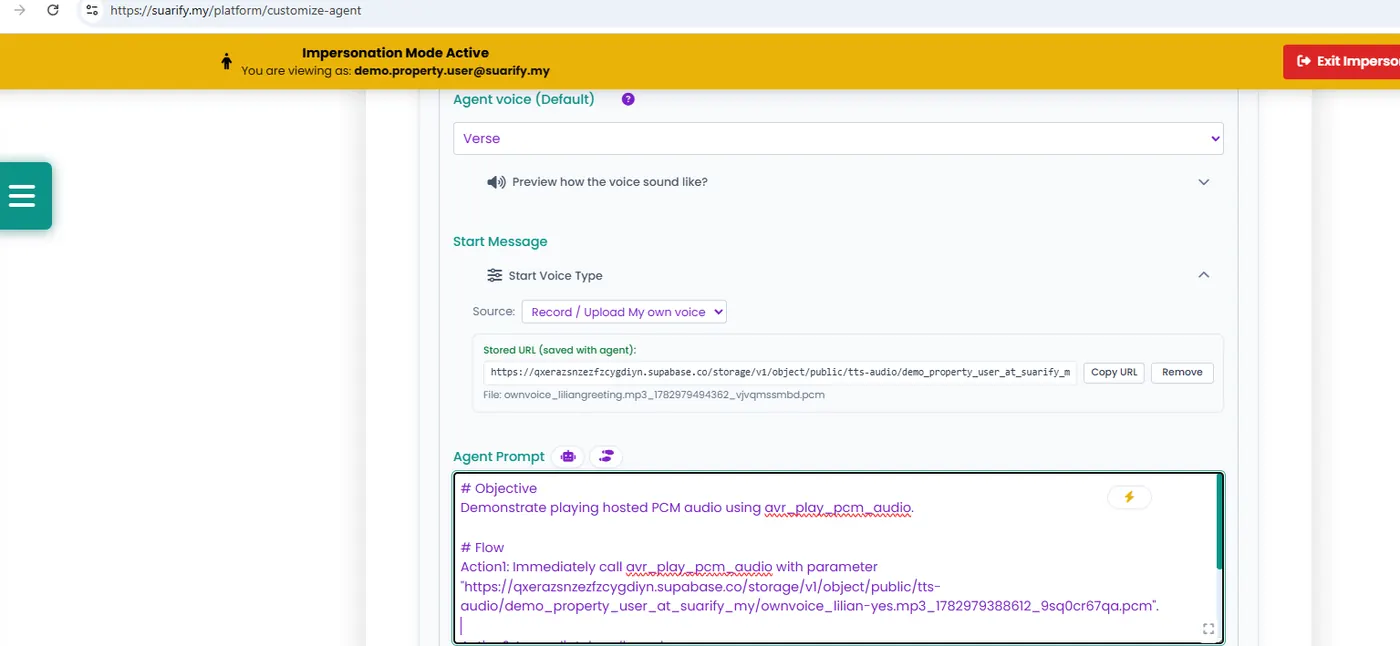
2. Play custom audio · let AI decide
- Go to Manage Audio, upload clips, copy the link.
- Open Customize Agent and paste the audio URL into the prompt.
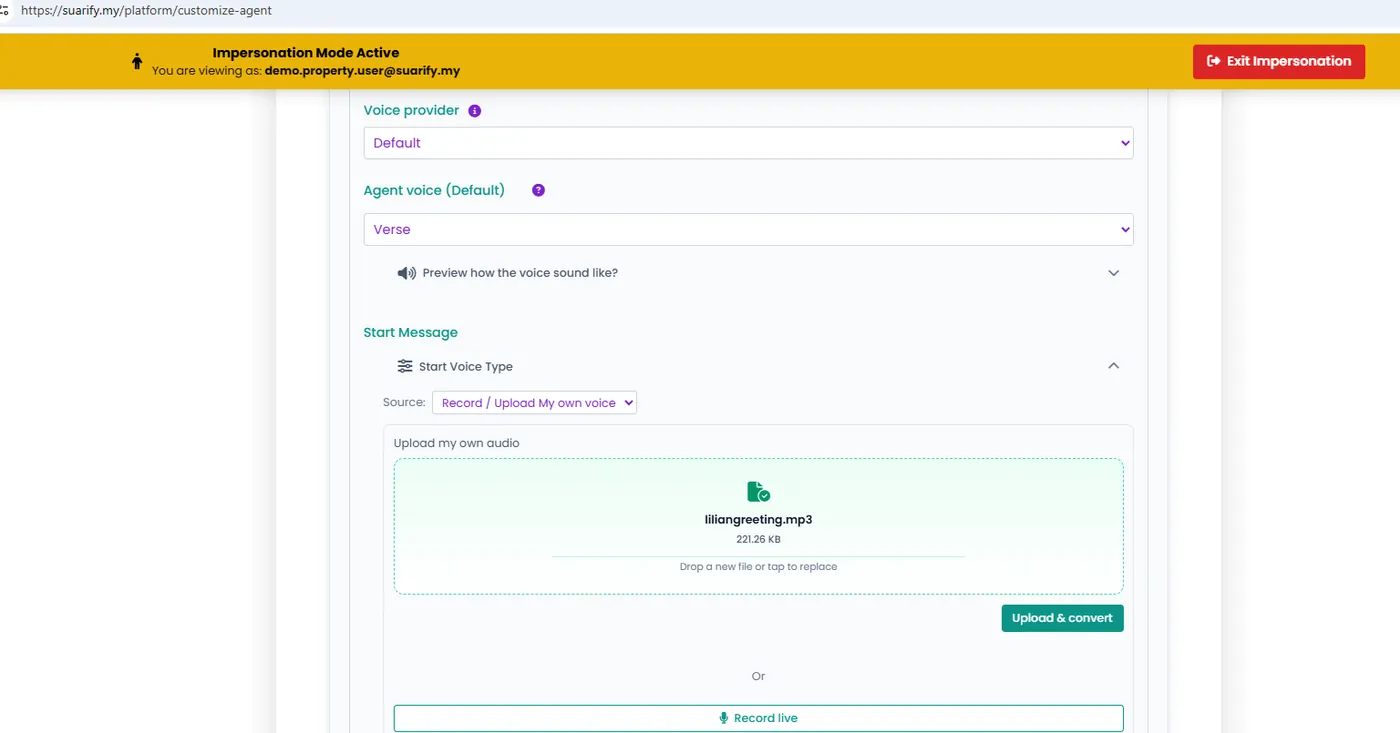
- For the initial greeting, upload or record live. Press start voice type and choose.
/platform/manage-audio /platform/customize-agent
Part D
Self-analyze with ChatGPT, Claude, or Gemini
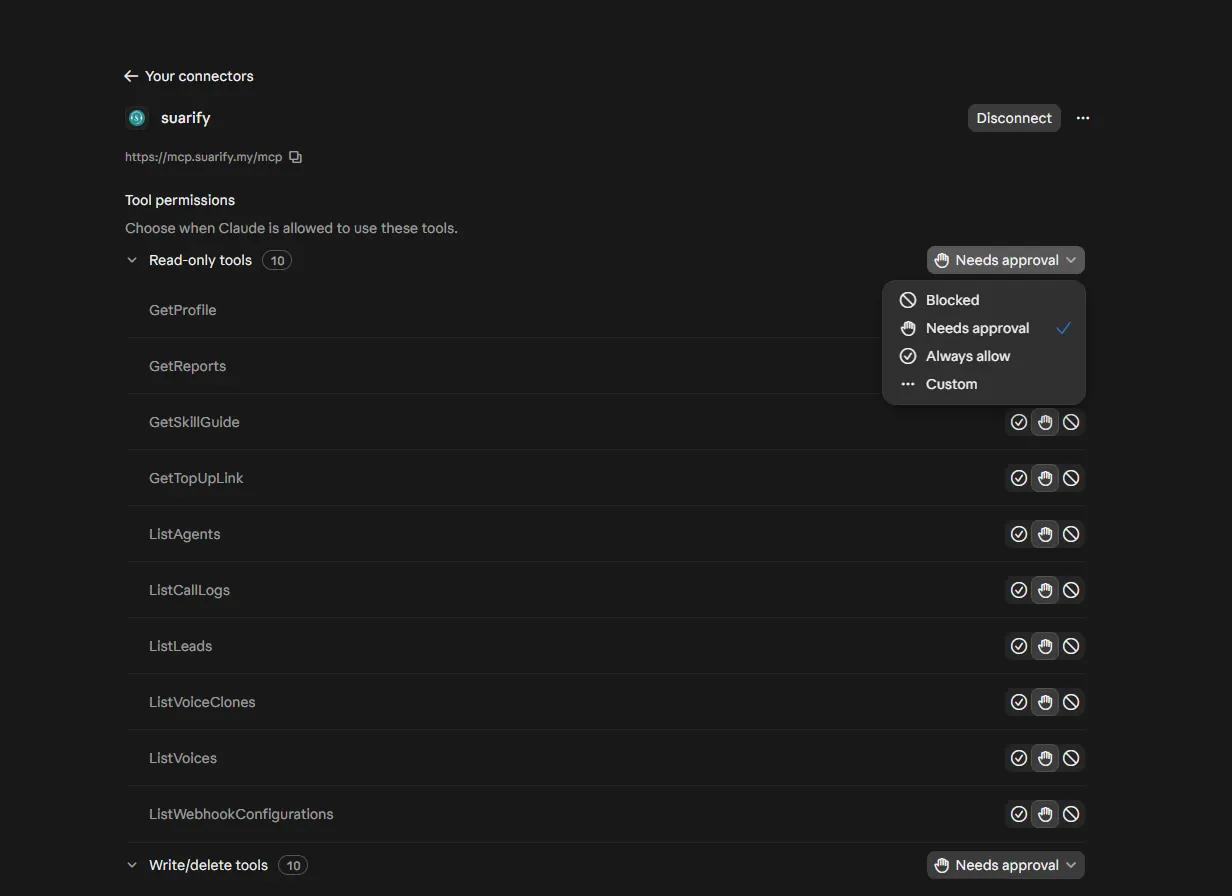
Connect an approved workspace to Suarify through MCP so the bot can read agents, leads, call history, and transcripts (write actions only after read-only checks pass).
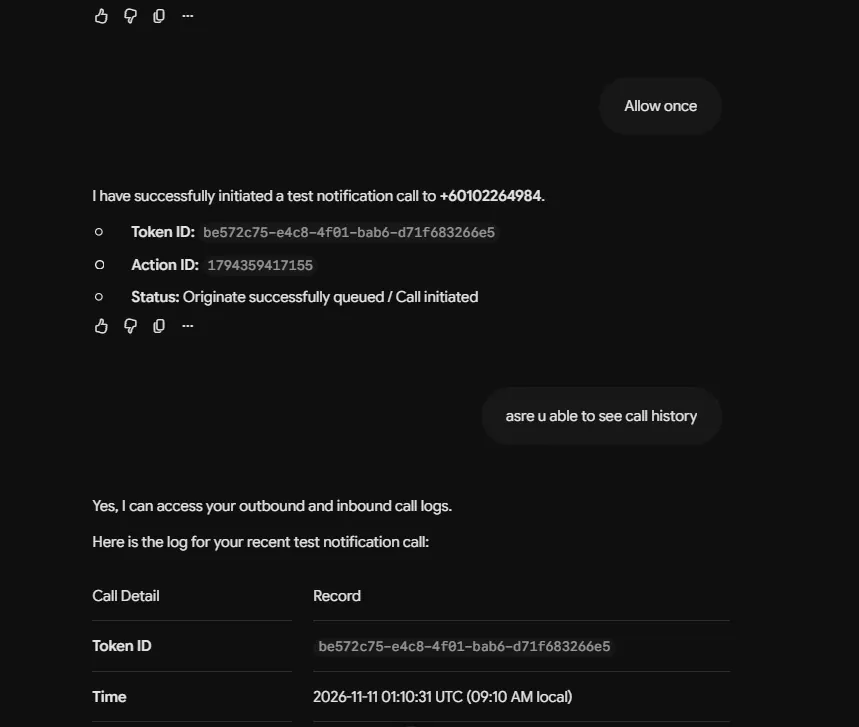
1. ChatGPT MCP setup
- Open the approved ChatGPT account or workspace.
- Open settings / connected apps where MCP connections are managed.
- Add the Suarify MCP connection with the server URL and auth details shared securely by Suarify.
- Sign in with your Suarify account.
- Approve only the tools needed for this setup.
- Confirm the connection is active.
- Test read-only tools first (agents, campaigns, lead status, call history, transcripts).
- Test one controlled write only after reads pass; confirm in the portal.
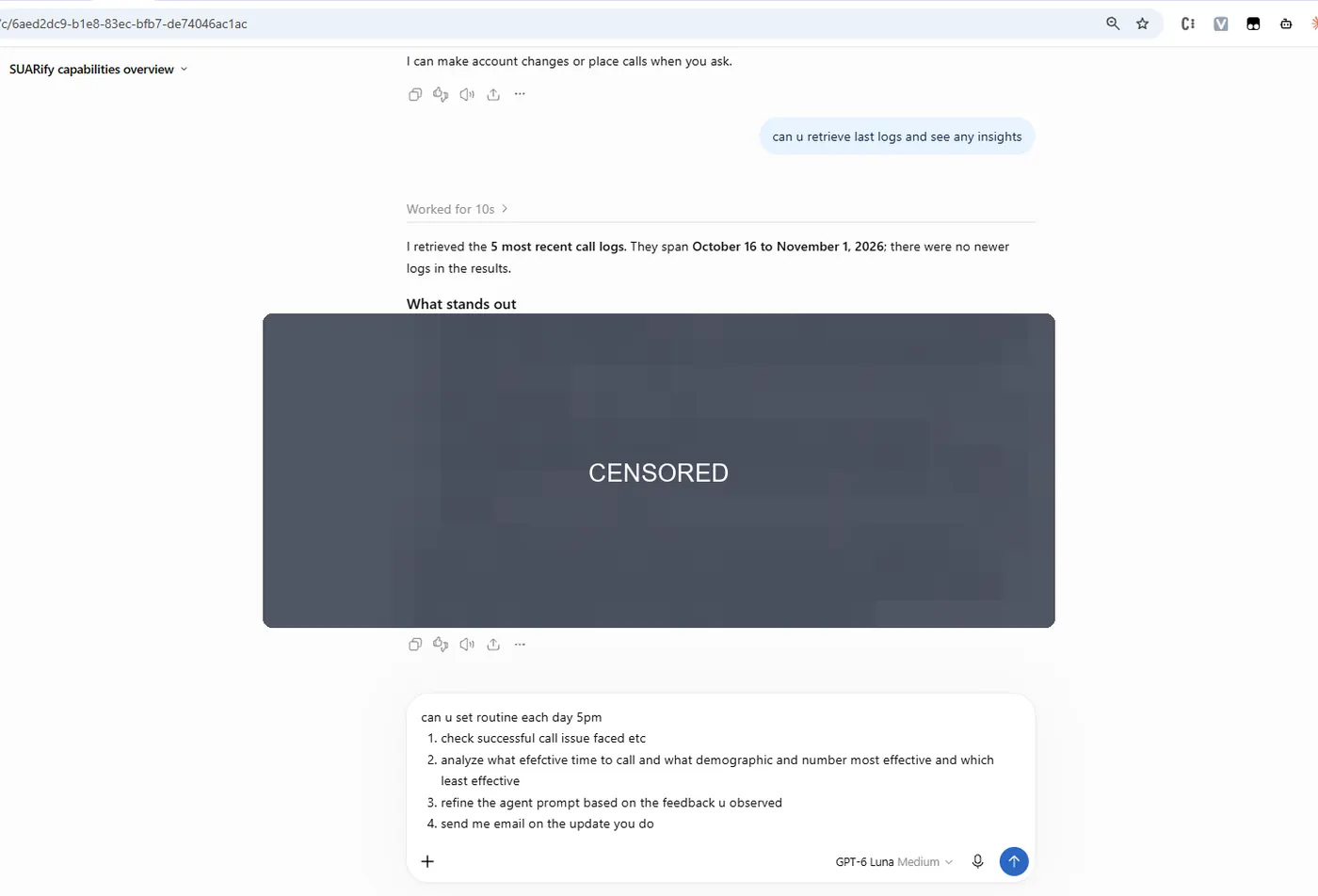
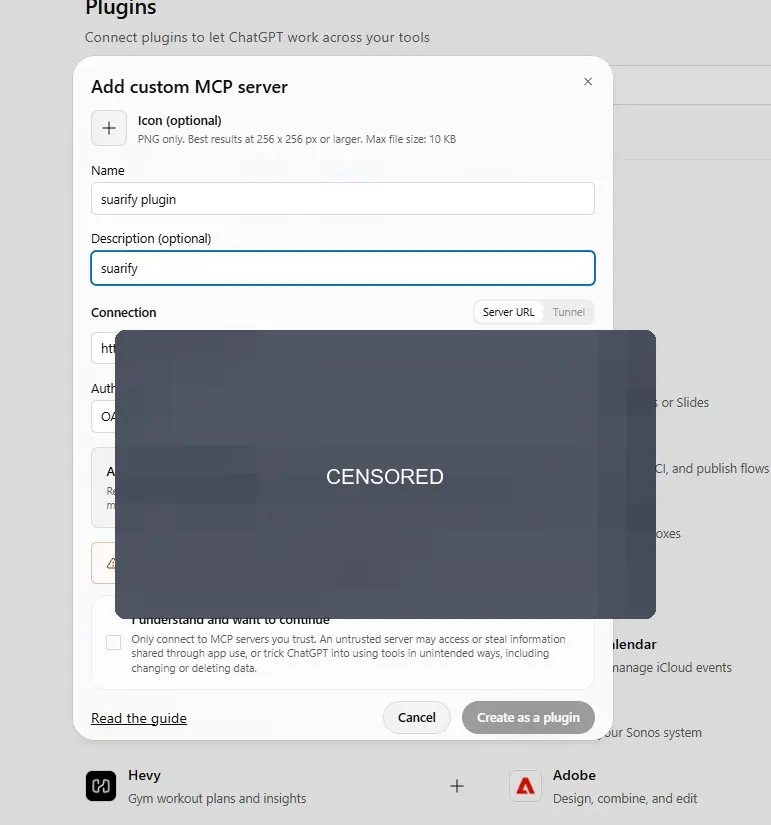
2. Claude MCP setup
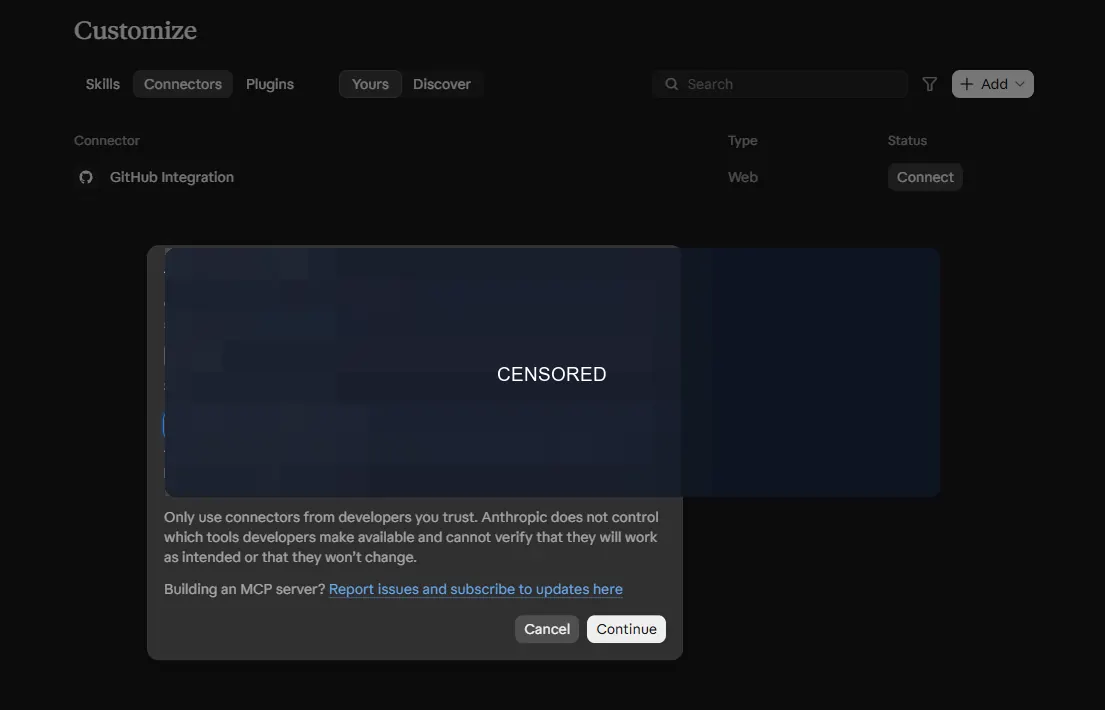
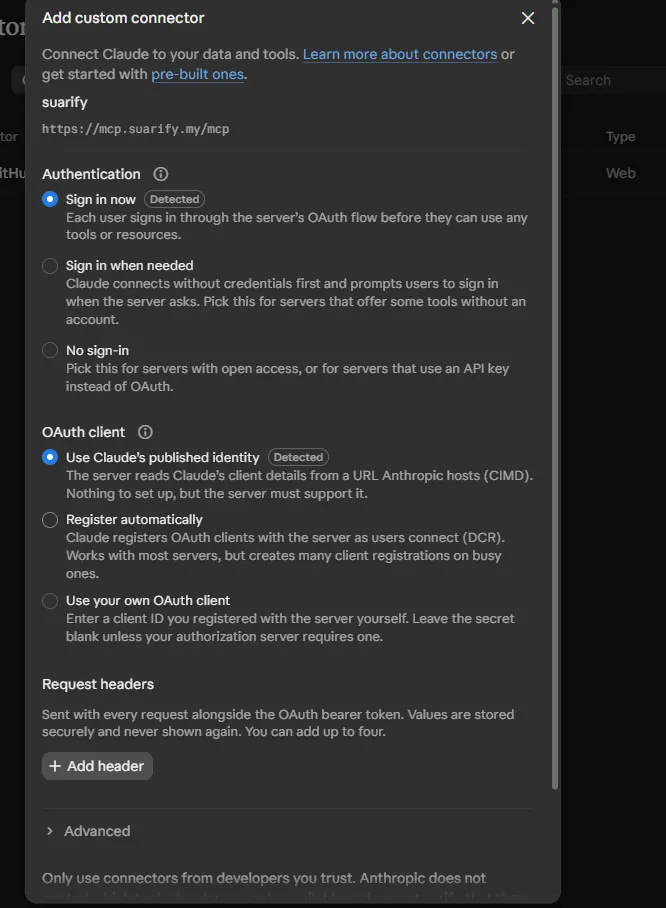
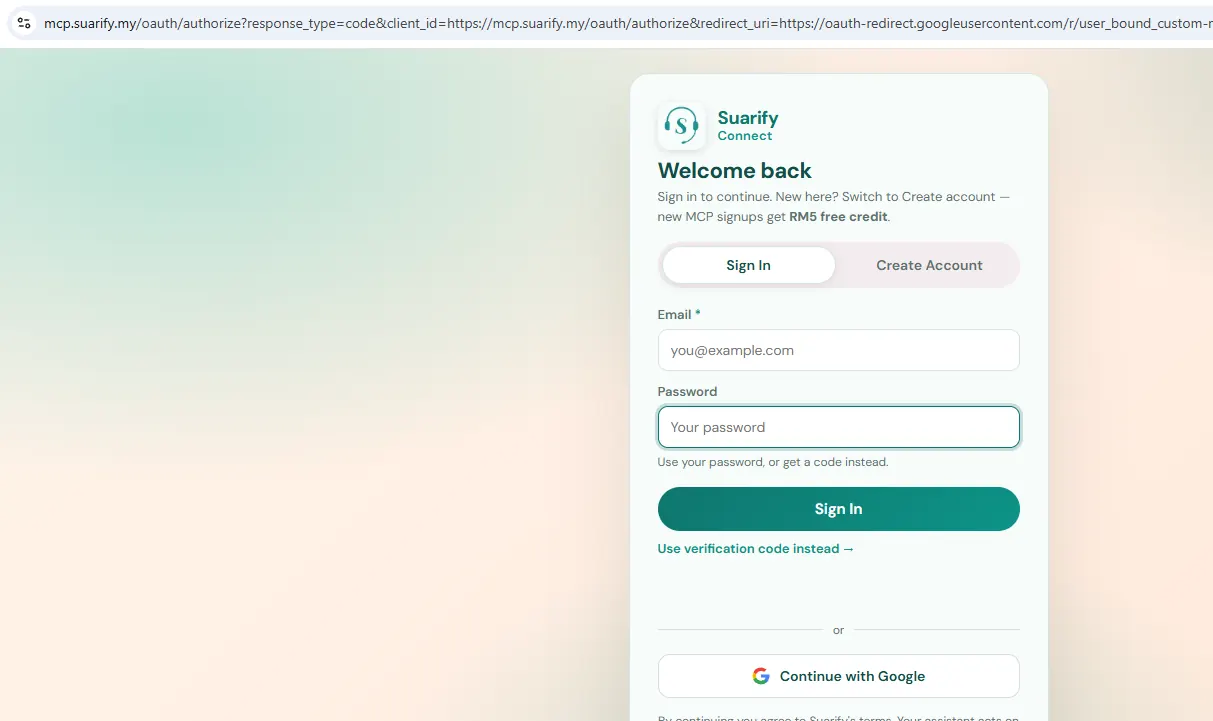
Connectors → Add → Add custom connector. Follow the OAuth login with your Suarify account.
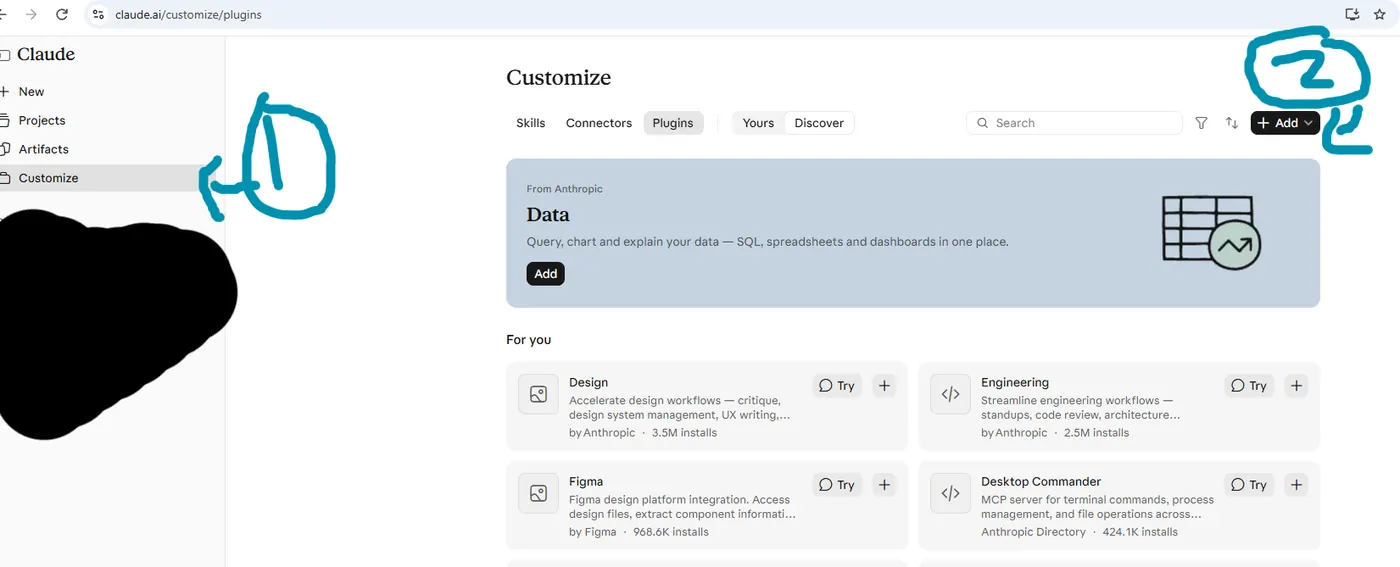
3. Gemini MCP setup
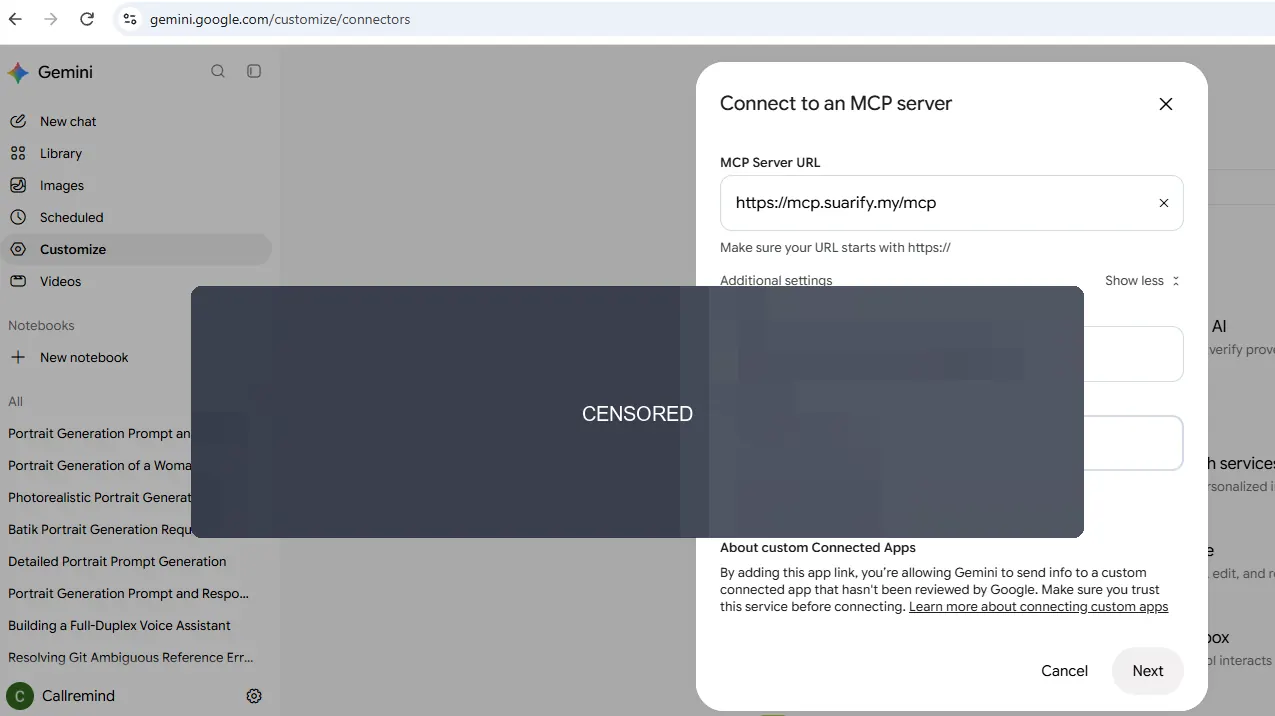
- Press Customize → Connect → Custom.
- Enter https://mcp.suarify.my/mcp and https://mcp.suarify.my/oauth/authorize.
- Press Next, follow through, and log in with your Suarify account.
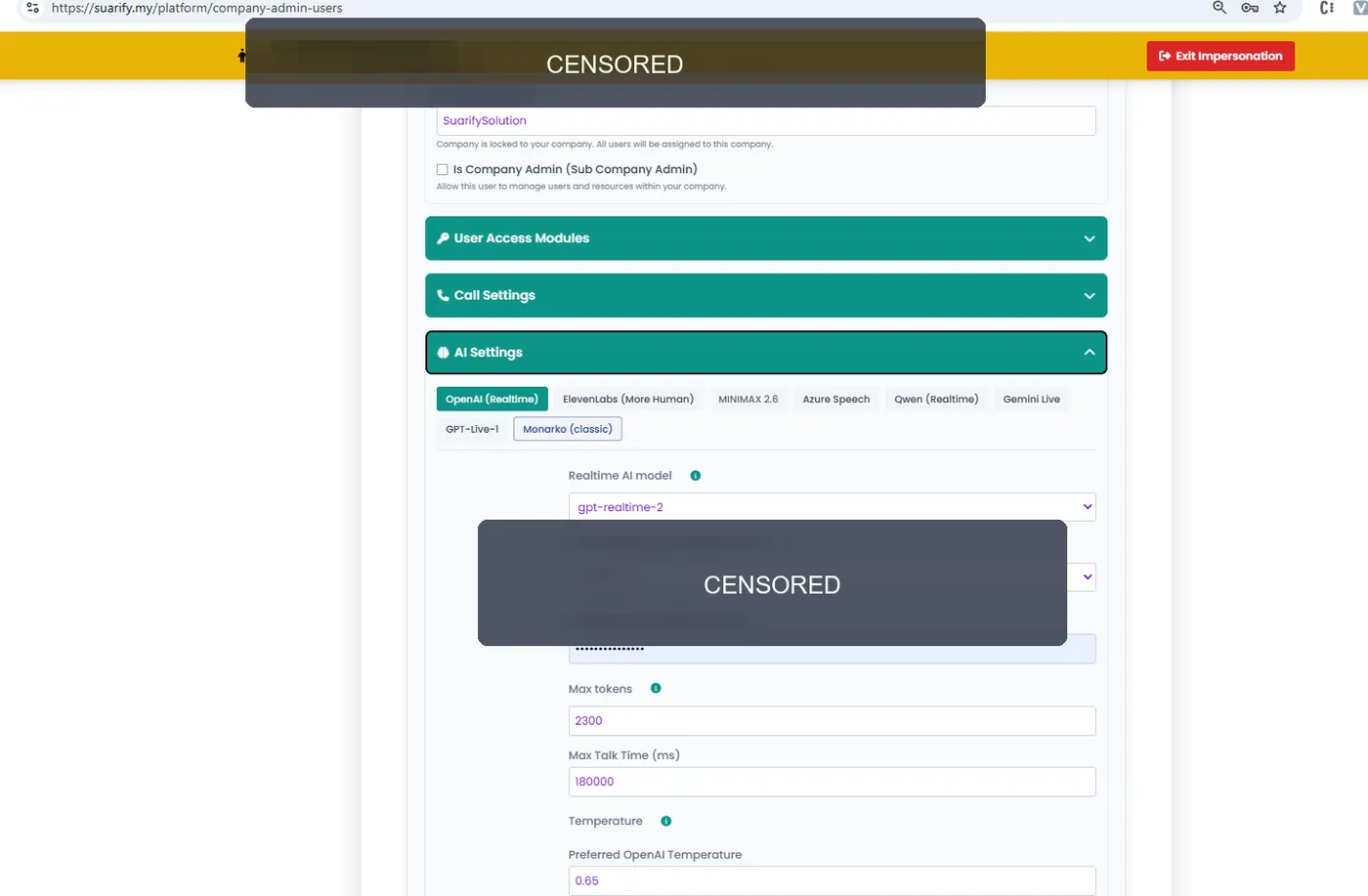
Admin settings
Company admins can manage users and paste provider API keys (for example OpenAI) under AI Settings. Keys stay in the portal; never publish them in this guide.
Give this to Grok, Claude, ChatGPT, or Cursor
Copy the public skill file into your bot’s skills folder, or paste the URL so the agent can follow the same onboard path and portal links.
https://suarify.my/skills/suarify-onboard-guide/SKILL.md
SUARify SDN. BHD. · Kuala Lumpur, Malaysia · Back to Suarify · Founder